
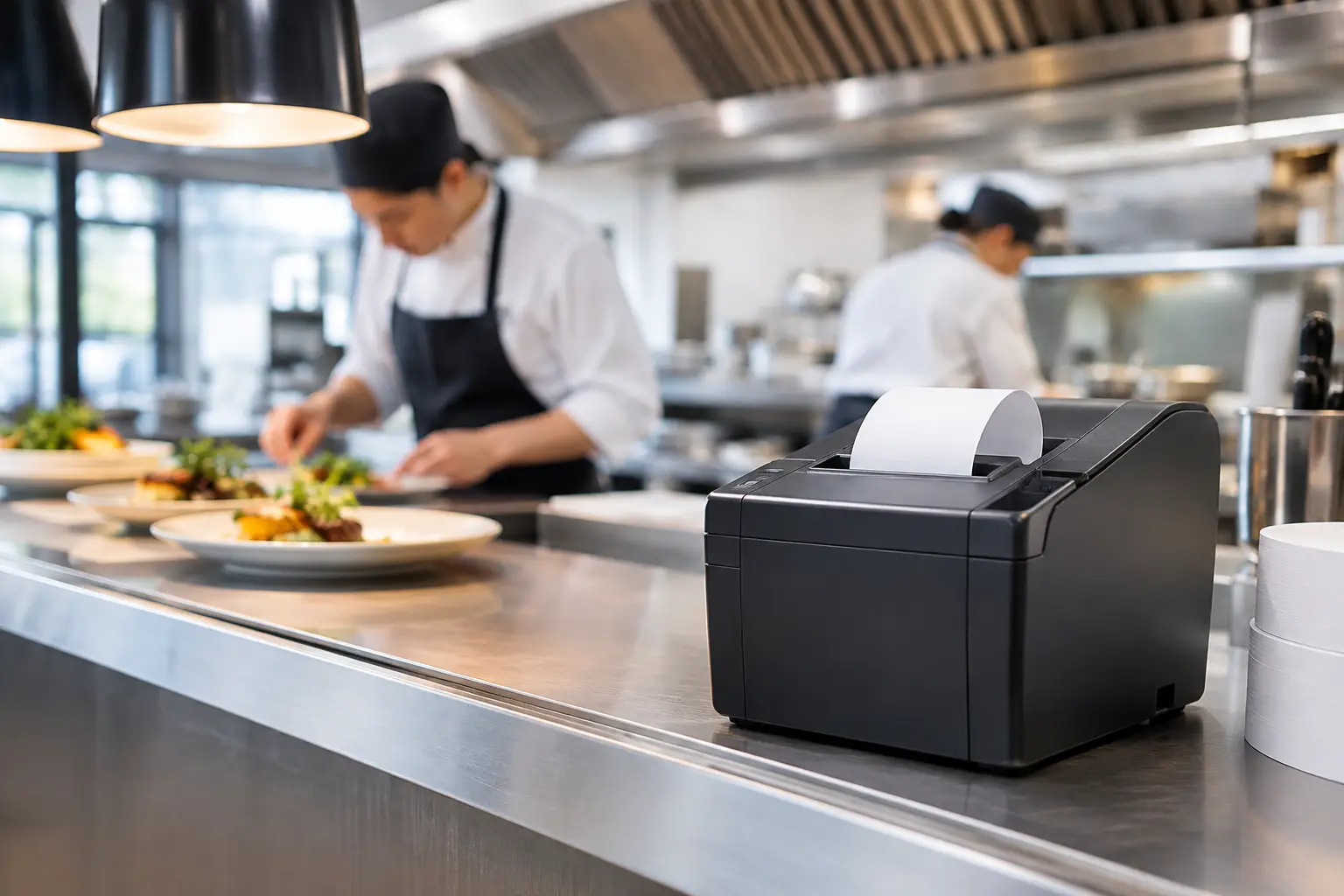
A kitchen printer may be small, but when it stops printing during a lunch rush, the effect reaches the pass, the counter and every table waiting on an order. Dockets go missing, staff start calling orders across the room, and a simple hardware fault becomes a service problem. This commercial kitchen printer guide is designed to help Australian cafés, takeaways, restaurants and food venues choose a setup that keeps orders clear, fast and dependable.
Start with the way orders move through your venue
The right printer is not simply the cheapest unit that works with your POS. It needs to suit your order flow. A compact café may need one printer at the coffee station and another in the kitchen. A busy restaurant may need separate printers for the bar, entrée section, grill, pizza station and pass. A takeaway venue may need online orders printed differently from counter orders, so staff can immediately see collection times and delivery details.
Before selecting equipment, map the journey of an order from the moment it is entered to the moment it is served. Consider who needs to see it, where they work, and whether the order should print in full or be split by preparation area. This is also the point to decide which modifiers matter. Notes such as “no onion”, “gluten free”, “extra hot” or “table 14” need to be easy to read at a glance.
A printer setup that reflects the real workflow reduces questions between front-of-house and kitchen staff. It also makes training easier when new team members join during a busy period.
Thermal kitchen printers are usually the practical choice
Most commercial kitchens use thermal receipt printers. They print using heat rather than ink or toner, so there are no cartridges to replace. The print is quick, the mechanisms are built for frequent use, and thermal paper rolls are inexpensive and simple for staff to change.
For most hospitality operations, an 80 mm thermal printer is the sensible starting point. The wider docket provides room for item names, modifiers, customer details and clear headings without wrapping lines excessively. A smaller 58 mm printer can work where bench space is tight or dockets are very basic, but narrow paper can make complex orders harder to read.
Impact printers still have a place in a small number of environments, particularly where duplicate dockets are required or high heat affects thermal printing. They are generally noisier, slower and require ribbon replacements, however. For the majority of cafés, quick-service venues and restaurants, thermal printers offer the better balance of speed, running cost and day-to-day convenience.
Print speed matters, but clarity matters more
A fast printer is helpful when dozens of orders arrive within minutes. Yet printer speed alone does not solve a poor setup. If dockets are cluttered, headings are unclear, or orders print to the wrong station, staff still lose time.
Ask how the POS system formats kitchen dockets. A well-configured docket should identify the order source, table or customer name, time, items, quantities and modifiers in a consistent order. Important preparation notes should stand out without turning every docket into a block of oversized text.
Choose the right connection for reliability
Kitchen printers can connect through Ethernet, Wi-Fi, USB, serial or Bluetooth, depending on the printer and POS system. Each has a use, but they are not equal in a demanding venue.
Ethernet is generally the preferred option for fixed kitchen printers. A wired network connection is stable, less affected by interference, and easier to diagnose when problems arise. If the printer is critical to service, it is worth running the cable properly rather than relying on a marginal wireless signal.
Wi-Fi can be useful where cabling is difficult, such as a temporary bar, market stall or a venue with a layout that makes installation impractical. The trade-off is that wireless performance depends on the quality of the network. Thick walls, competing devices, poor access point placement and overloaded guest Wi-Fi can all affect reliability. A business-grade network with separate staff and guest connections provides a much better foundation.
USB and Bluetooth are often suitable for a single terminal or a portable arrangement, but they can be restrictive as a business grows. USB ties the printer to one device, while Bluetooth has limited range and can be less straightforward to reconnect after a device or software update.
The key question is not which connection is easiest on installation day. It is which one will still work reliably on a packed Saturday morning.
Placement is part of the equipment decision
A kitchen printer needs to be close enough to the relevant work area that staff can act on an order quickly. It must also be protected from the conditions that shorten equipment life: heat, steam, grease, splashes and accidental knocks.
Avoid placing a printer directly beside a deep fryer, grill, dishwasher outlet or boiling pot. Heat and moisture can affect print quality and internal components, while airborne grease builds up over time. A practical position is often on a wall shelf, under a pass shelf, or in a protected area near the prep station. Make sure there is enough clearance to open the cover and replace paper without moving other equipment.
Power access deserves the same attention. Cables should be secured, kept away from wet areas and arranged so they do not create a trip hazard. If the printer is mounted in a tight location, staff still need to see paper and error lights quickly. A printer that is technically installed but difficult to service will create avoidable delays later.
Plan for the noise and the human response
Printer buzzers can be useful in a noisy kitchen because they alert staff to a new order. In a small, quiet café, the same alert may be distracting. Most systems allow sound settings to be adjusted, and some venues use visual order handling processes alongside printed dockets.
It depends on the team and the pace of service. The aim is for orders to be noticed promptly without adding unnecessary noise or confusion.
Check POS compatibility before you buy
Not every printer works with every POS platform, even when the plugs look compatible. Compatibility depends on supported printer drivers, network settings, the POS application and how the system sends orders to each station.
Confirm that the printer is approved for your POS system and that it supports the functions you need. This includes kitchen routing, docket reprints, automatic cutting, cash drawer control where relevant, and printing from online ordering channels. If you use tablets at the counter, check whether the system prints directly to the kitchen printer or through a networked hub or terminal.
It is also wise to think ahead. A venue might begin with one printer and later add a bar printer, a second kitchen section or an outdoor service point. Selecting compatible hardware and configuring the network with expansion in mind can prevent an unnecessary replacement project down the track.
Consumables and maintenance keep the printer dependable
A reliable printer still needs the right paper and some basic care. Use quality thermal paper suited to the printer’s recommended roll size. Poor-quality rolls can leave dust inside the mechanism, produce faint dockets or create paper-feed issues. Keep spare rolls in a dry, accessible location, particularly before weekends, functions and public holidays.
Cleaning should be part of regular venue maintenance. Dust, grease and paper residue can build up around the print head and rollers. With the printer powered off and cooled, staff can follow the manufacturer’s instructions for cleaning the print head and paper path. Avoid using unsuitable chemicals or scraping at components, as this can cause damage.
Common warning signs include faded print, partial lines, paper jams, frequent cover-open alerts or intermittent connection drops. Do not wait until the printer fails completely if these issues are becoming regular. Early servicing can often prevent a breakdown during trade.
When a kitchen display system may be a better fit
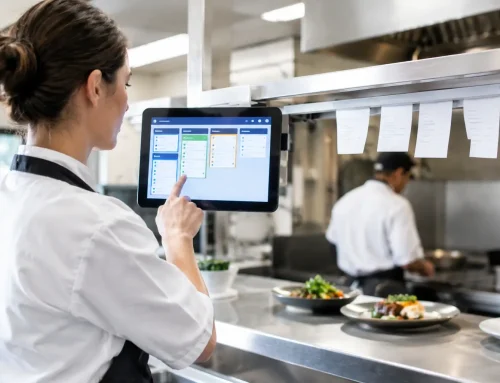
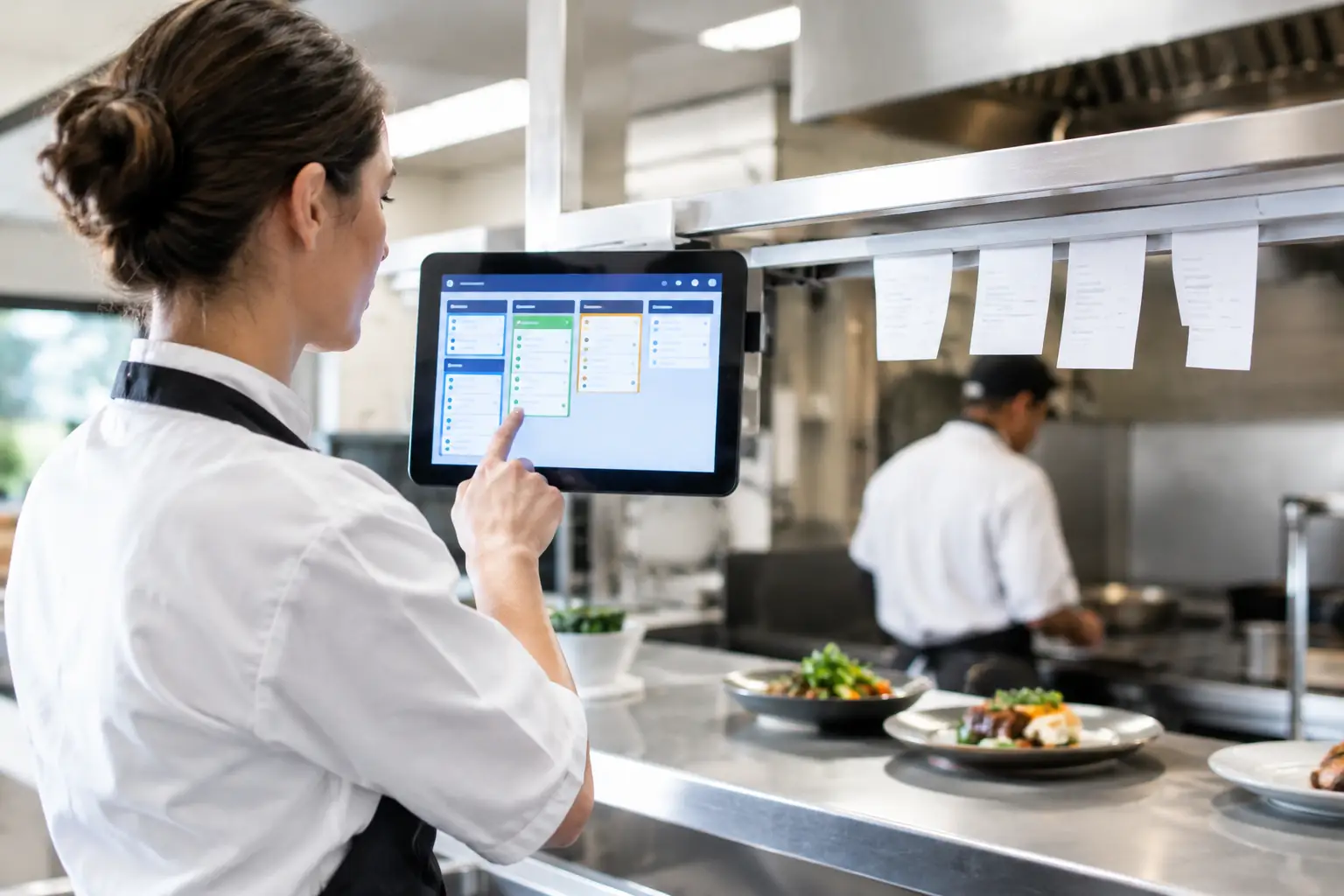
Kitchen display systems can replace some or all printed dockets with screens that show live orders and preparation status. They can be particularly useful for high-volume venues, multi-station kitchens and operations that want to measure preparation times or reduce paper use.
They are not automatically the best choice for every business. Screens require reliable networking, appropriate mounting, staff training and a sensible backup plan if power or network access is interrupted. Some kitchens also prefer printed dockets for particular stations, even when a display system is used elsewhere.
A hybrid approach is often practical. For example, a main kitchen display can manage production while a printer produces a pass docket or prints orders for a specialised prep area. The best choice comes back to how your team works under pressure.
Installation and support are worth factoring in
A kitchen printer is only as dependable as the configuration around it. Correct IP addressing, secure cabling, POS routing, docket formatting and staff testing all make a difference. A proper installation should include testing orders from each source, checking every preparation station and showing staff how to change rolls and respond to simple alerts.
For Southeast Queensland businesses, EBE can help select, install, configure and support commercial printer and POS setups around the way your venue actually operates. Local technical support is especially valuable when a printer fault threatens service and your team needs a practical fix rather than a generic helpdesk script.
Choose the printer that your staff can read, maintain and rely on when the orders are coming in fastest. That is the setup that protects service, keeps the kitchen moving and gives customers fewer reasons to wait.






Leave A Comment
You must be logged in to post a comment.