
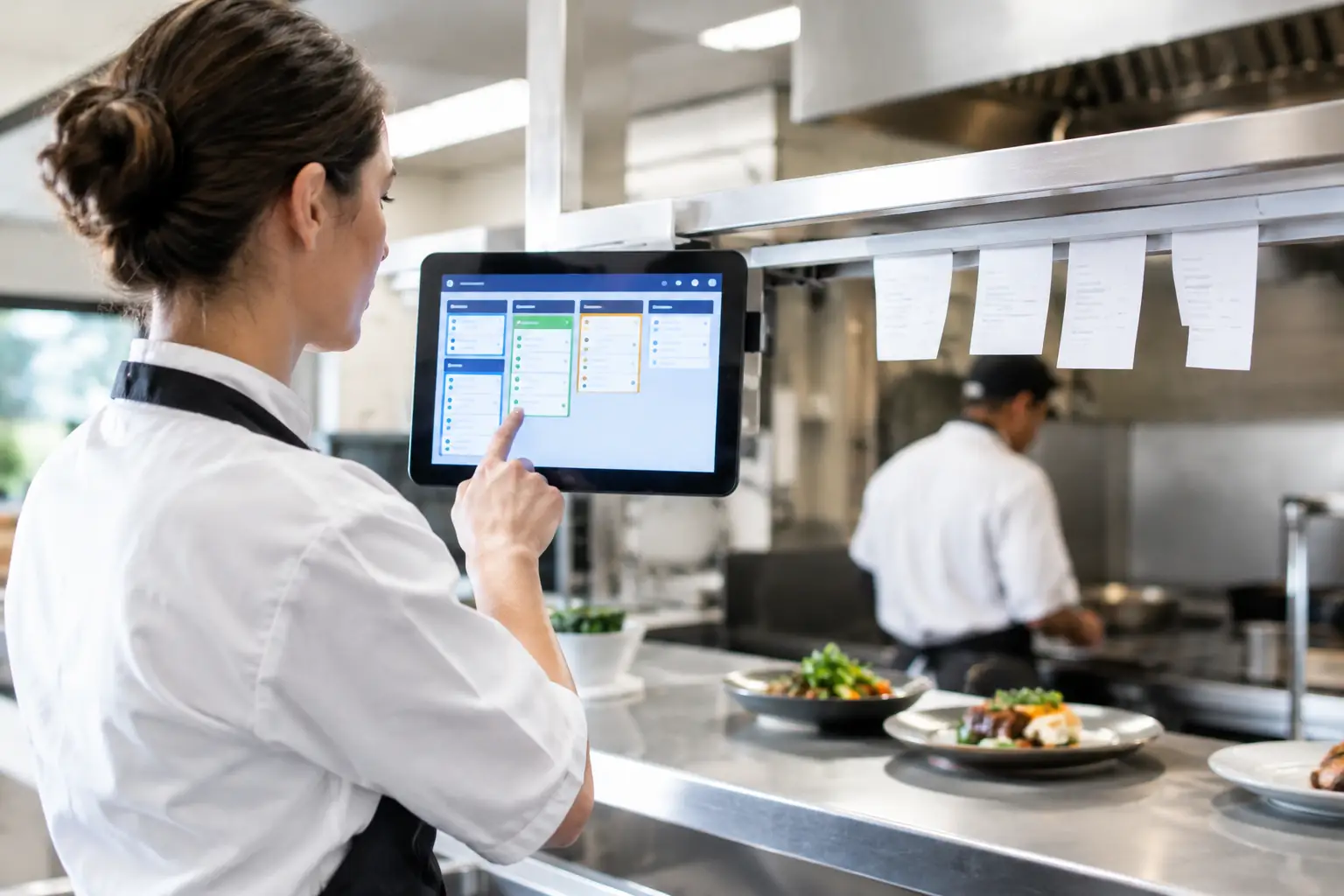
A lunch rush can unravel quickly when one printer receives every order. The grill misses a burger modification, the coffee station gets a docket for chips, and front-of-house staff are left asking the kitchen what is ready. To configure kitchen docket routing properly, each part of an order needs to reach the person or station responsible for making it.
For cafés, takeaways, pubs and restaurants, docket routing is not simply a POS setting. It is a practical workflow decision. When it is planned around how your team prepares, packs and serves food, it reduces missed items, avoids unnecessary call-outs and gives staff clearer information when the queue builds.
Start with the way your kitchen actually works
Before changing any POS or printer settings, map the journey of a typical order from the counter or table to collection. Look at who prepares drinks, hot food, cold food, desserts and takeaway packing. Then consider where each team member is standing during peak service.
A small café may only need two destinations: one docket printer at the coffee machine and one at the kitchen pass. A busy venue might need separate routing for grill, fryer, pizza, bar, cold station and desserts. More routing is not automatically better. If two stations are managed by the same person in the same area, separate dockets can add handling without improving speed.
It also helps to identify exceptions before they cause problems. For example, a breakfast menu may use the grill and coffee station, while lunch introduces fryer items and takeaway packaging. If your POS allows it, routing categories can be matched to the menu rather than relying on staff to remember where each item belongs.
Configure kitchen docket routing by station
The most reliable approach is to build routing around production stations, not menu sections that only make sense to customers. A customer may order from a “Lunch” category, but the individual items could be made at the grill, fryer and drinks station.
In the POS back office, each sellable item is generally assigned to a printer group, production area or kitchen station. The wording varies between POS systems, but the principle remains the same: assign every item to the destination that needs to act on it.
A burger, for example, should route to the grill. Add-ons such as extra bacon or a gluten-free bun should appear clearly with that burger rather than printing as a separate, easily overlooked line elsewhere. A side of chips may go to the fryer, while a bottled drink may not require a kitchen docket at all.
For items that involve more than one station, decide which team member owns the final result. A chicken parmigiana with chips may need a grill docket and a fryer docket. If your team plates both components at the pass, sending the full order to both stations can be useful. If that creates duplicated preparation, send each station only the relevant item and use a pass or expo docket to show the complete table order.
Keep modifiers attached to the right item
Modifiers are where routing errors become expensive. Notes such as “no onion”, “extra hot”, “dressing on side” or allergy-related instructions must print with the food or drink they affect.
Check how your POS handles modifiers before going live. Some systems inherit the routing of the main item. Others require modifier groups to be assigned separately. A modifier that routes to the wrong printer, or does not print at all, can lead to remakes, delays and difficult customer conversations.
Avoid using open-text notes as the main way to manage regular changes. Common requests are better set up as clear modifier buttons because they are faster for staff, easier to read on dockets and more consistent for the kitchen. Open notes still have a place for genuinely unusual requests, but they should be visible and positioned prominently on the printed docket.
Choose the right docket format and hardware
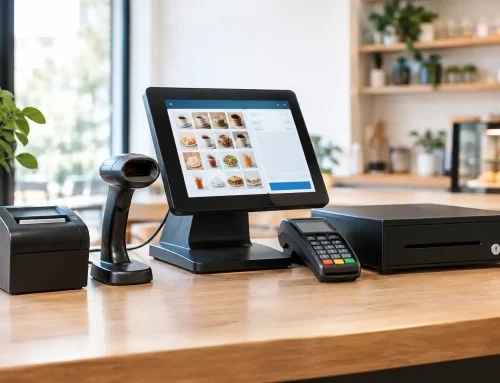
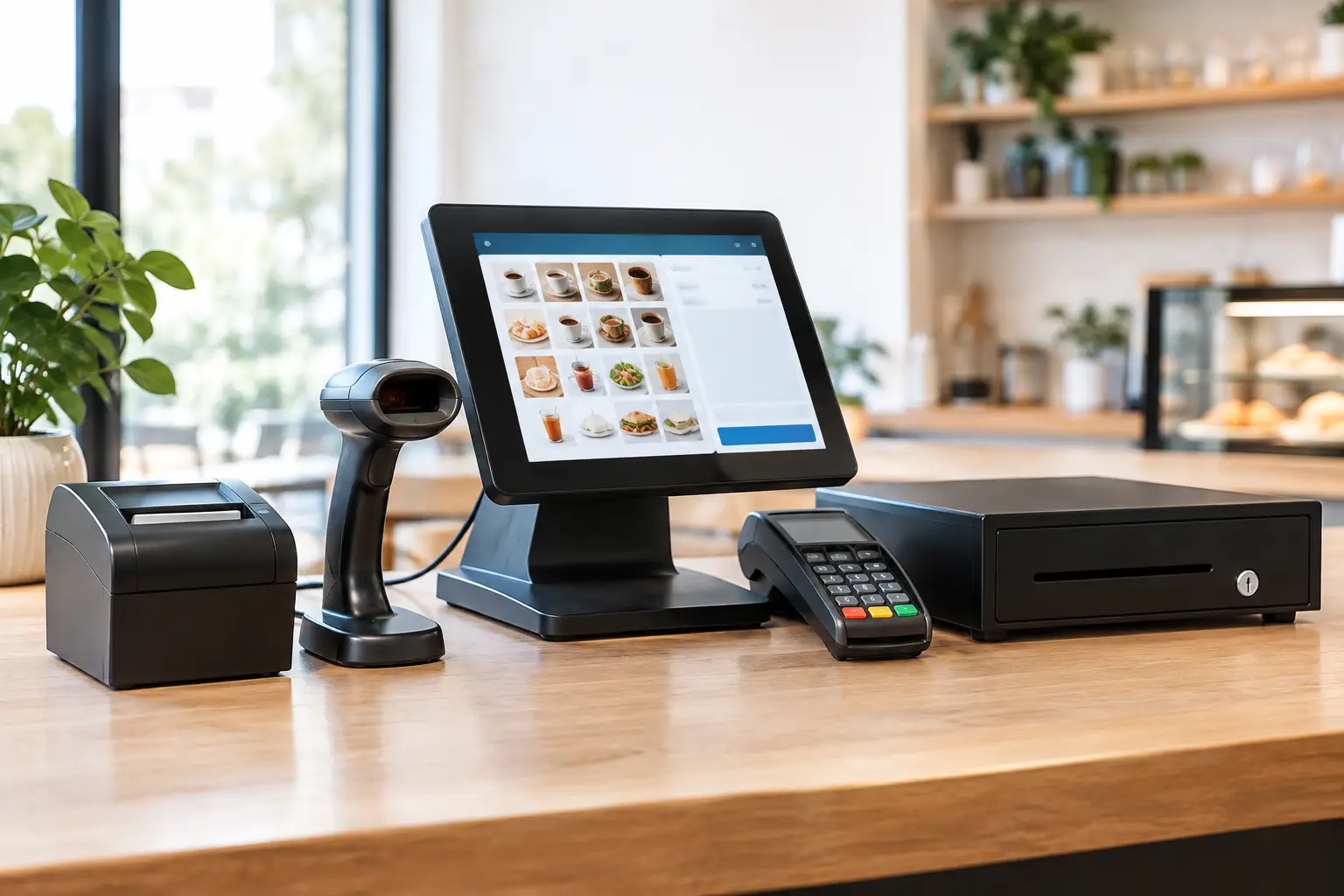
Routing only works when the docket is readable and reaches the station reliably. Thermal receipt printers are common in hospitality because they are fast and economical, but they need the right placement, network connection and maintenance.
At each station, consider heat, steam, grease, bench space and foot traffic. A printer beside a deep fryer may need protection from splashes and regular cleaning. A printer mounted too far from the prep area may encourage staff to collect dockets in batches, slowing the flow of work. In a noisy kitchen, an audible alert can be useful, provided it does not become background noise that everyone ignores.
Docket design matters as well. The order number, order type and timing information should be easy to find at a glance. Use clear labels such as DINE IN, TAKEAWAY, PICKUP or DELIVERY where relevant. If a customer has a table number, name or collection time, make sure it prints in a consistent location.
Kitchen printers should also be distinguished physically. A simple label such as “GRILL”, “COFFEE” or “PASS” saves time during training and makes fault finding easier when a printer stops responding.
Decide when an order should print
Not every venue wants orders to print at the same point. For counter-service cafés and takeaways, printing when the sale is finalised is usually appropriate. The kitchen receives a confirmed order, and staff can quote a realistic wait time.
Table-service venues may prefer orders to print as soon as they are sent from a handheld device or terminal. This allows drinks and starters to begin earlier, but it requires staff to understand the difference between saving a table, sending a course and finalising payment.
Timed or course-based routing can be valuable for restaurants, but it needs disciplined use. Sending every course immediately may overload the kitchen and leave food waiting at the pass. Holding mains until starters are cleared can improve pacing, although it introduces another step for floor staff. The right setup depends on service style, staffing levels and how much control the kitchen wants over firing orders.
Test real orders before a busy service
A routing configuration should never be judged using one simple test sale. Build a short test menu that reflects the orders most likely to cause confusion: a multi-item dine-in order, a takeaway order, a meal with several modifiers, a refund or void, and an order containing items from multiple stations.
Check four things during testing:
- Every item prints once, at the correct station.
- Modifiers, notes, table details and order types are clear.
- No station receives irrelevant dockets that distract from its work.
- Printers recover correctly after paper changes, a network interruption or a restart.
Have the people who will use the system take part in the test. Managers can confirm the setup in the back office, but baristas, cooks and counter staff will quickly identify whether a docket is unclear or a printer is placed in the wrong spot.
Run the test at a quiet time, then observe the first few peak periods closely. A routing plan often needs small adjustments once real service starts. Perhaps all cold drinks should go to the bar rather than the coffee station, or perhaps delivery orders need a separate pass docket to prevent bags being collected too early.
Build a simple fallback process
A networked POS and kitchen printer setup is dependable when it is installed and maintained properly, but every venue should know what to do if a printer goes offline. The fallback process should be simple enough that a new staff member can follow it under pressure.
This may mean routing all kitchen items temporarily to one working printer, using a kitchen display screen if available, or writing orders manually while the fault is resolved. Keep spare paper rolls near each printer and make sure staff know how to reload them. A paper-out condition is one of the most common reasons an order appears to have disappeared.
It is also worth checking printer status and network connections as part of opening procedures, especially after power outages, renovations or changes to internet equipment. A printer can be switched on but unavailable to the POS if its IP address, cable connection or network settings have changed.
For Southeast Queensland operators, EBE can assist with POS configuration, kitchen printer setup, staff handover and ongoing technical support. Having the same local team involved in system design and after-sales service can make changes far less disruptive when your menu or workflow evolves.
Review routing when your menu changes
Kitchen docket routing is not a set-and-forget job. New menu items, seasonal specials, delivery platforms, extra equipment and staff changes can all affect where orders should go. A new smoothie range, for instance, may need to route to the drinks station rather than printing at the kitchen pass.
Review the setup whenever you add a menu category or notice repeated questions during service. If staff regularly ask, “Who has this docket?” the route, wording or station ownership needs attention.
The best routing setup is usually the one that feels almost invisible: orders arrive where they are needed, details are easy to read, and the team can focus on serving good food rather than chasing paper around the kitchen.


Leave A Comment
You must be logged in to post a comment.