
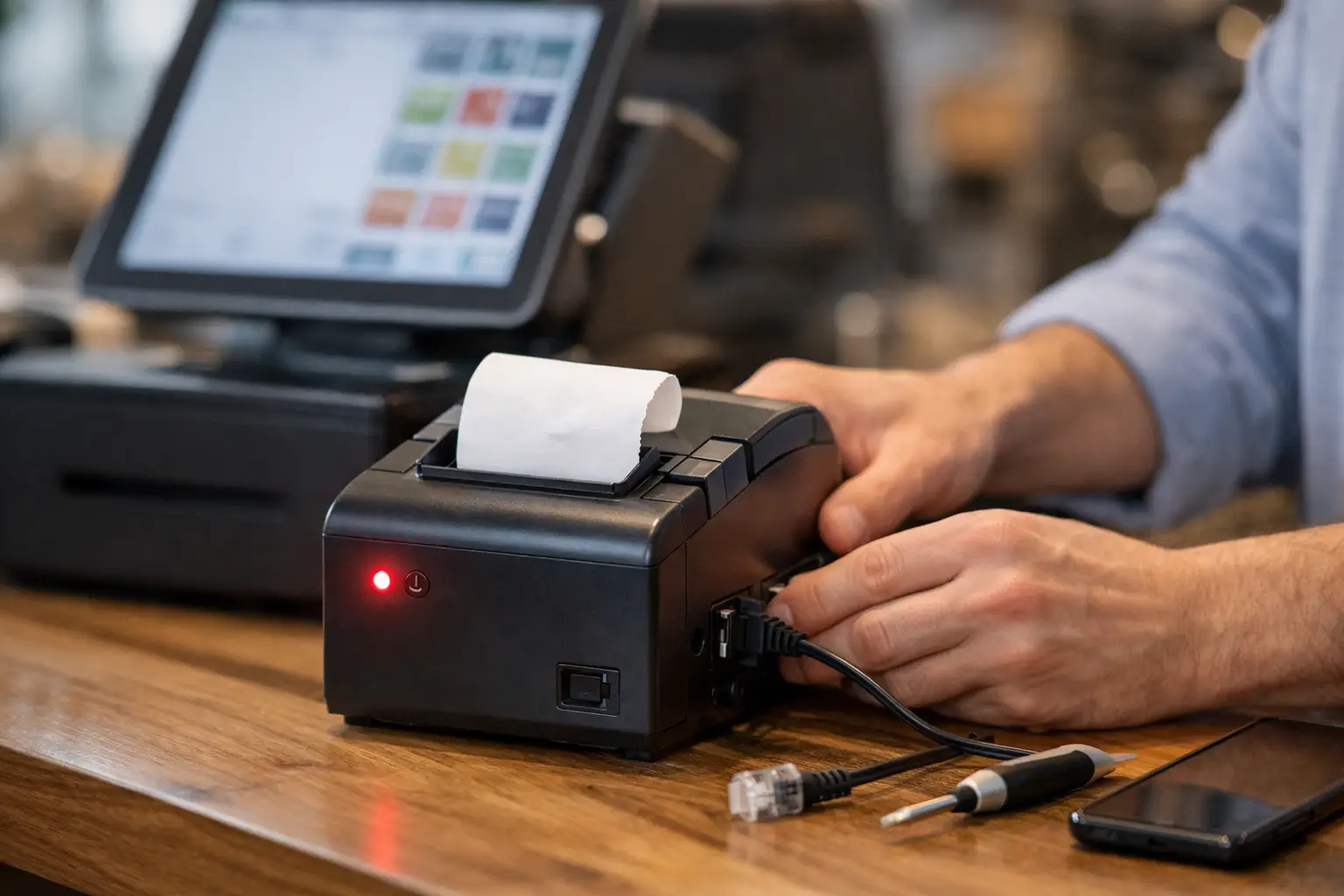
A receipt printer can be working perfectly at breakfast, then show as offline just as the lunch rush starts. That status does not always mean the printer has failed. In most cases, the issue sits somewhere between the printer, its power supply, the connection method and the POS software trying to send the docket.
If you are asking, “why is my receipt printer offline?”, work through the checks in the right order. Start with the physical basics, then move to cables, network settings and POS configuration. This approach avoids changing settings unnecessarily and helps get your counter moving again sooner.
Why Is My Receipt Printer Offline?
An offline message means the POS terminal, computer or network cannot communicate with the printer. The cause may be as simple as a loose power lead, a paper jam or a USB cable that has been bumped while cleaning the counter. It can also point to a network issue, a changed IP address, a paused print queue or an incorrect printer setting in your POS.
Receipt printers are often used heavily and sit in demanding environments. Heat, steam, dust, spills and constant cable movement can all affect hardware over time. In hospitality venues, for example, a kitchen printer may be physically fine but disconnected after a router restart. In retail, a Windows update or a staff member selecting the wrong printer can be enough to stop receipts from printing.
The quickest fix depends on how your printer connects. USB printers are usually affected by power, cables or computer settings. Ethernet and Wi-Fi printers introduce network settings and IP addresses. Bluetooth models can lose pairing or connect to the wrong device.
Start With the Checks at the Counter
Before opening printer settings or calling support, check the printer itself. Confirm it is switched on and that its power light is showing normally. If there are no lights, test the power point with another device if it is safe to do so, then check that the power pack is firmly connected at both ends.
Open the printer cover and make sure the paper roll is installed correctly, with the thermal side facing the print head. Remove any torn paper, scraps around the cutter or a roll that is too tight. Close the lid firmly. Many thermal printers will show an error or refuse to print if the cover is not fully latched.
Next, perform the printer’s built-in self-test where available. This is commonly done by turning the printer off, holding the feed button and turning it back on. The exact process varies by model, so check the equipment manual if needed. A successful self-test tells you the printer can power up, feed paper and print independently of the POS system. That narrows the fault to the connection or software side.
If the printer will not power on or cannot complete a self-test, do not keep sending print jobs. It may need a replacement power supply, a service repair or a check of the internal print mechanism.
Check the Connection Type
USB receipt printers
A USB printer should be connected directly to the POS computer or terminal where possible. Check the cable at both ends and look for signs of damage, pinching or a loose connector. A cable can appear connected but still have an intermittent fault.
Try a different USB port on the computer. Avoid relying on an unpowered USB hub, particularly if other devices such as scanners, customer displays or scales are also connected. If a spare compatible cable is available, testing it can quickly rule out a failed lead.
After reconnecting, wait a moment for the computer to detect the printer. If it is not recognised, restart the printer first, then restart the POS terminal. Reboots are not a cure for every fault, but they can restore a USB connection after a software update or communication error.
Ethernet and network receipt printers
For a wired network printer, check that the Ethernet cable is seated properly and that the port lights near the connection are active. No link lights can indicate a damaged cable, a failed switch port or an unplugged connection.
Network printers generally use an IP address. If the router, modem or network switch has recently been restarted, the printer may have been assigned a different address. Your POS may still be trying to print to the old one, which makes the printer appear offline.
A fixed or reserved IP address is usually the more reliable option for a business-critical printer. It prevents the address changing after power interruptions and reduces the chance of lost printing during trade. This needs to be set up correctly within the network and POS configuration, as simply guessing an address can create a conflict with another device.
Wi-Fi and Bluetooth receipt printers
Wireless printers are convenient, but they are more sensitive to signal strength, interference and pairing changes. Check whether the printer is connected to the correct Wi-Fi network. A new modem, changed Wi-Fi password or a network split between 2.4 GHz and 5 GHz can disconnect older equipment.
For Bluetooth, make sure the printer is paired with the intended POS device, not a nearby tablet or mobile. Turn Bluetooth off and back on at the POS device, then reconnect the printer. If it repeatedly drops out, a wired Ethernet or USB connection may be the better long-term choice for a busy fixed counter.
Check the POS and Computer Settings
If the printer self-test works and the connection appears sound, inspect the device settings. On a Windows-based POS, open the printer list and confirm the receipt printer is online, selected as the correct device and not marked as paused. Check the print queue too. One stalled job can sometimes hold up every docket behind it.
Clear any stuck jobs, then send a test receipt from the POS. Do not make the receipt printer the default printer unless your POS provider specifically requires it. Businesses often also need A4 invoices, reports or labels, and changing the default can send documents to the wrong device.
Within the POS software, check the printer assignment for each function. A venue may have separate printers for customer receipts, kitchen dockets, bar orders and online orders. If one printer is offline, make sure the system has not accidentally assigned all printing to it. Also check that the correct port, IP address or printer name is selected.
Driver issues can occur after an operating system update, a replacement terminal or a new printer installation. Reinstalling a driver may help, but it should be done carefully. Incorrect drivers or generic settings can affect paper cutting, cash drawer operation, logo printing and docket formatting. If your business is trading, record the existing settings before making major changes.
When Restarting Helps, and When It Does Not
A controlled restart can clear temporary communication faults. Turn off the printer, then restart the POS terminal or computer. For a network printer, restart the printer before restarting network equipment. Once the printer is fully ready, reopen the POS and send a single test receipt.
Avoid repeatedly switching power on and off while staff are still processing sales. This can create duplicate print jobs and confusion at the counter. If there is a queue of pending receipts, clear it first where practical and keep a manual record of transactions until printing is restored.
Restarting will not fix a damaged thermal head, worn cutter, faulty power pack or incorrectly configured network. If the same issue returns every few days, treat it as a recurring fault rather than a one-off interruption. That is the point to investigate cabling, power quality, printer age and network design.
Reduce Future Receipt Printer Dropouts
Reliable printing starts with a stable setup. Secure cables so they cannot be knocked loose during cleaning or stock movement. Keep power packs off wet floors and away from heat sources. Use quality thermal paper that suits the printer, as poor paper can leave residue and contribute to feed or print-quality problems.
For networked sites, document each printer’s location, connection method and IP address. This makes it much easier for staff or a technician to identify the affected device during a busy service period. It is also worth training key staff to recognise the difference between a paper error, a connection fault and a POS setting issue.
Older printers can still be dependable when maintained, but there is a trade-off. Repairing a known unit may be cost-effective, while frequent failures during peak trading can cost more in lost time and customer frustration than replacing it with a properly configured model.
If the printer passes its self-test but still shows offline after these checks, the fault is likely in the POS, terminal or network configuration. For Southeast Queensland businesses, EBE can assess the full setup, not just the printer, and help restore a reliable connection. The practical goal is simple: every sale should produce the right receipt or docket when your team needs it.














Leave A Comment
You must be logged in to post a comment.