
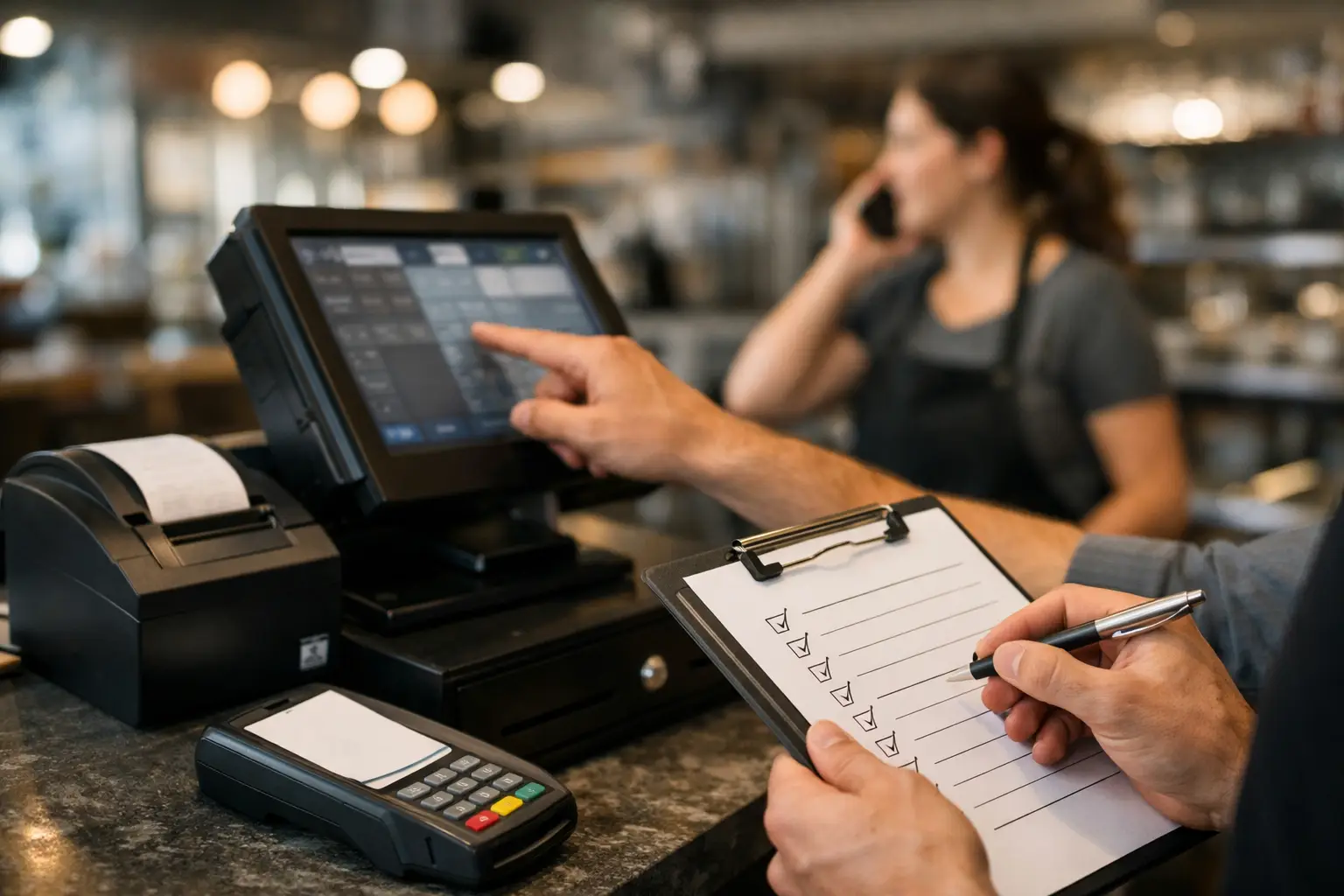
A POS fault at 12.30 pm is not a minor IT issue. It can stop orders reaching the kitchen, hold up card payments, create incorrect bills and put staff under pressure in front of a full dining room. This restaurant POS troubleshooting checklist gives managers and supervisors a practical order of checks to follow before a small fault becomes a service interruption.
The aim is not to have staff pulling apart equipment or changing settings they do not understand. It is to identify the likely cause, restore safe operation where possible, and provide clear information if technical support is required.
Start with the impact, not the error message
Before restarting anything, establish what has actually stopped working. Ask whether the issue affects one terminal, one function or the whole venue. A single POS station that cannot print is different from every terminal being offline, and the response should be different too.
Check whether sales can still be processed, whether EFTPOS is working independently, and whether kitchen, bar or receipt printers are affected. If a system has continued taking orders but they are not printing, staff may need to use a temporary manual docket process while the fault is investigated. Keep those handwritten orders together so they can be reconciled correctly later.
Record the time the issue began, the terminal or device involved, any on-screen error, and what changed immediately beforehand. A power outage, internet drop-out, software update, spilled drink or staff member moving a cable can all point to the cause.
Restaurant POS troubleshooting checklist: the first checks
Work through the following checks in order. Stop if you find damaged cables, a burning smell, liquid inside equipment or repeated electrical faults. Switch off the affected device at the power point if it is safe to do so, keep staff clear, and arrange qualified assistance.
- Check power first. Confirm the POS terminal, screen, printer, router and EFTPOS device have power. Look for loose plugs, switched-off power boards and tripped circuit breakers. Test a known working device in the same outlet if you need to rule out the power point.
- Check physical connections. Ensure network cables, USB leads and printer cables are fully seated and undamaged. Cables under a counter are easily knocked loose during cleaning or stock deliveries.
- Check the network status. If multiple POS terminals cannot connect, inspect the router or network switch lights and confirm whether other internet-connected devices are working. Do not reset networking equipment repeatedly during service, as this can extend the outage.
- Check the software message. Read the wording carefully and take a photo if necessary. “Printer offline”, “database unavailable” and “payment terminal disconnected” each require a different response.
- Check consumables. A receipt or kitchen printer may appear faulty when it is simply out of paper, has a jam, or has a poorly fitted paper roll. Confirm the correct thermal paper is loaded with the paper feeding in the right direction.
- Check one controlled restart. If the equipment is powered, connected and safe, close the POS application properly where possible and restart the affected terminal once. Avoid repeatedly switching equipment on and off, particularly where transactions may still be processing.
When payments are failing
Payment issues need calm handling because they affect both cash flow and customer confidence. First confirm whether the problem is limited to one EFTPOS terminal or applies across the venue. A card terminal may have its own mobile or network connection, so it can fail independently from the POS.
Check the terminal display for a connection, merchant or settlement message. Ensure it has power or battery charge, and check that any network cable is secure. If the terminal uses Wi-Fi, verify that the venue network is operating, but do not change Wi-Fi settings during a busy shift unless you are certain of the correct configuration.
If the POS says a payment is pending or uncertain, do not immediately charge the customer again. Check the transaction status in the POS and on the EFTPOS terminal. A duplicate charge is far more difficult to resolve than a short delay at the counter. Where the transaction cannot be confirmed, follow your venue’s payment procedure and make a note of the amount, time and order number.
It is sensible to keep a manual fallback process for short outages. That may involve recording orders and payments carefully for later entry, or using another approved terminal. The right approach depends on your POS provider, payment setup and business procedures.
When kitchen or receipt printers stop printing
Printer faults are common, but the cause is not always the printer itself. If one kitchen printer is not producing dockets, first establish whether orders are reaching the POS system and whether other printers are working. If the bar printer receives orders but the kitchen printer does not, the issue may be related to printer routing, the network connection or the printer’s assigned IP address.
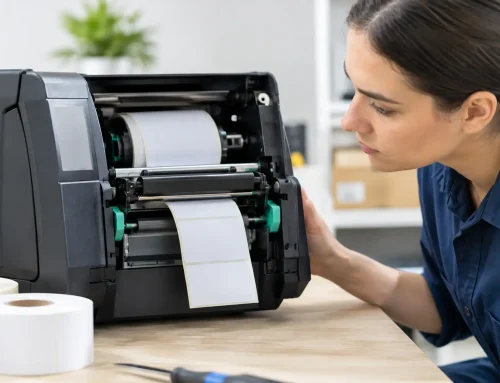
At the printer, check paper, lid closure, error lights, paper jams and cable connections. Remove a jam gently according to the equipment instructions. Do not force the print head or use sharp tools inside the printer.
For thermal printers, a blank docket can indicate that the roll has been loaded backwards. If print is faded or intermittent, clean the print head only with suitable materials and when the unit is switched off and cool. Regular cleaning matters in kitchens, where heat, grease and airborne dust can shorten equipment life.
If dockets are delayed rather than missing, check whether the printer is receiving a backlog of jobs. Restarting may clear a minor queue issue, but repeated delays often point to network performance, software configuration or ageing hardware that needs attention.
When the whole POS system is offline
A venue-wide outage requires a different response. Assign one person to coordinate the checks and another to keep front-of-house and kitchen staff informed. Too many people restarting terminals, routers and printers at once can make it harder to identify what happened.
Confirm whether mains power is available in the venue and whether internet service is affected. Check the router and network switch for power and status lights. If your POS relies on cloud access, an internet failure may prevent normal operation even when the terminals themselves are switched on.
Use any documented offline mode only if staff have been trained to use it. Offline trading can have limits around stock control, payment processing, customer accounts and order synchronisation. It may be preferable to run a simple, controlled manual process for a short period rather than create a larger reconciliation problem later.
Avoid factory resets, deleting applications or changing router settings under pressure. Those actions can remove working configurations and turn a recoverable fault into a longer outage.
Check the basics after service resumes
Getting the screen back on is not the end of the job. Once the immediate rush has passed, process a small test order and confirm it reaches every required destination: the screen, kitchen or bar printer, receipt printer and payment terminal. Void the test according to your normal procedure if it should not be included in sales.
Then reconcile any manual orders, delayed dockets and uncertain payment attempts. Check that cash drawer totals, EFTPOS settlements and POS sales records make sense before the end-of-day close. This is where unnoticed duplicates, missed orders and printer routing faults tend to surface.
It is also worth noting recurring symptoms. A printer that drops off the network every Friday night, a terminal that only freezes when the venue is busy, or a cash drawer that intermittently fails to open are patterns worth investigating. Small recurring faults often indicate a cable, power, network or configuration issue that can be fixed before it causes a complete failure.
Know when to call for support
Call for technical help promptly when multiple terminals are offline, payments cannot be confirmed, printers repeatedly disconnect, equipment has liquid damage, or the same error returns after a controlled restart. Have your site name, affected device, error message, time of failure and the checks already completed ready. That information helps a technician diagnose the issue faster and arrive prepared where an on-site repair is needed.
For Southeast Queensland restaurants, a local support partner such as Electronic Business Equipment can help with POS configuration, printer repairs, networking and staff guidance, not just replacement hardware. The best support arrangement is one that understands how your kitchen, counter and payment workflow actually operate.
Keep this checklist near the manager’s station, review it with new supervisors, and test your fallback process before the next busy service asks whether it works.












Leave A Comment
You must be logged in to post a comment.